
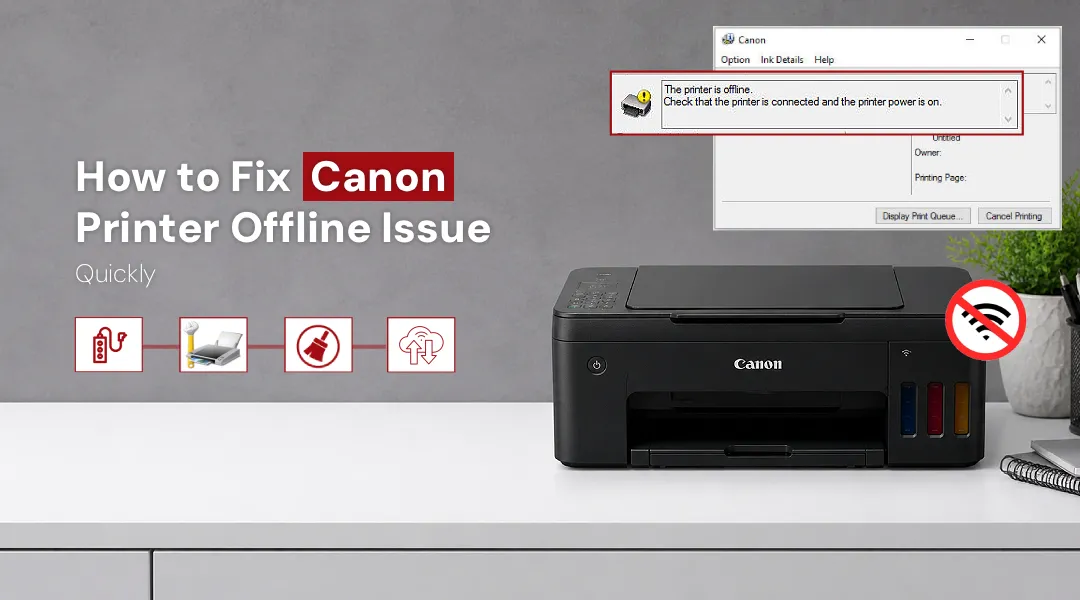
Check your printer connection, restart the device, and set it as the default printer in settings to bring it back online. Also, update drivers and clear pending print jobs to quickly fix the Canon Printer Offline issue.
Is your Canon printer showing “Offline” right when you need to print something urgent? You are not alone. Thousands of users face this frustrating problem every day. The good news is that most causes behind a Canon Printer Offline status are easy to diagnose and fix, often in under five minutes.
This guide walks you through every proven fix, from basic connectivity checks to driver reinstallation, so you can get back to printing without calling support.
Why Is My Canon Printer Offline? Common Causes
Before jumping into solutions, it is important to understand why canon printer goes offline in the first place. The “Offline” status simply means your computer cannot communicate with the printer. This can happen due to:
- Loose or faulty cables, A disconnected USB cable is the most overlooked culprit.
- Wi-Fi connectivity drops, The printer and PC may be on different networks, or the router may have reset.
- Incorrect default printer setting, Windows may be sending print jobs to the wrong device.
- Stuck print queue, A jammed or corrupted print job can block all future communication.
- Outdated or corrupted printer drivers, Drivers act as the bridge between your OS and printer; if they break, so does communication.
- “Use Printer Offline” mode accidentally enabled, Windows has a manual toggle that forces offline status regardless of the printer’s actual state.
Identifying the root cause saves you time. Now let’s fix it.
How to Fix Canon Printer Offline: 9 Step-by-Step Solutions
Step 1: Check Physical Connections and Power
Start simple. If you use a USB connection:
- Unplug the USB cable from both the printer and the PC.
- Wait 30 seconds and firmly reconnect.
- Try a different USB port if available.
If you use a wireless connection:
- Make sure both your printer and computer are connected to the same Wi-Fi network (not a 5GHz vs 2.4GHz mismatch).
- Restart your router, then restart the printer.
- Check the printer’s Wi-Fi indicator light, it should be steady, not blinking.
Step 2: Restart the Print Spooler Service
The Print Spooler is a Windows background service that manages print jobs. Restarting it often resolves a Canon Printer Offline status instantly.
- Press Windows + R, type services.msc, and hit Enter.
- Scroll down and find Print Spooler.
- Right-click it and select Restart.
- Wait a few seconds, then try printing again.
Step 3: Disable “Use Printer Offline” Mode
Windows can mistakenly set your printer to offline manually. Here’s how to reverse it:
- Open Control Panel and select Devices and Printers.
- Right-click your Canon printer.
- Select See what’s printing.
- Click the Printer menu at the top.
- If “Use Printer Offline” has a checkmark, click it to uncheck and disable that mode.
This single step fixes the problem for a large number of users who wonder why my canon printer is offline even though everything appears connected properly.
Step 4: Set Canon as the Default Printer
Sometimes, when canon printer says offline, it’s because Windows is routing jobs to a different default printer (or a virtual one like Microsoft Print to PDF).
- Go to Settings and select Bluetooth & devices. Now select Printers & scanners.
- Click on your Canon printer.
- Select Set as default.
Also, make sure “Let Windows manage my default printer” is toggled Off, this setting can override your manual selection.
Step 5: Clear the Print Queue
A stuck print job can block everything behind it, making it look like the printer is offline.
- Open Devices and Printers and double-click your Canon printer.
- In the print queue window, go to Printer and then click on Cancel All Documents.
- If jobs refuse to delete, restart the Print Spooler (as in Fix 2) and try again.
Step 6: Reconnect the Printer to Your Wi-Fi Network
If the canon printer appears offline after a router change, password update, or network reset, the printer has lost its saved Wi-Fi credentials and needs to reconnect.
- On the printer’s touchscreen or menu panel, navigate to Network Settings → Wireless LAN Setup.
- Select your network name (SSID) and enter your Wi-Fi password.
- Once reconnected, print a Network Configuration Page from the printer’s settings to confirm the IP address is assigned.
For a clean initial setup or full network reconfiguration, visit ij.start.canon, Canon’s official setup portal, which guides you through wireless connection step by step with model-specific instructions.
Step 7: Assign a Static IP Address to Your Printer
If your Canon printer frequently goes offline, a changing IP address (due to DHCP reassignment) may be the cause. Giving the printer a static IP prevents this.
- Print a Network Configuration Page to find the current IP.
- Enter that IP in your browser to open the printer’s embedded web server.
- Go to Network Settings, and then select TCP/IP Settings and manually set a fixed IP address outside your router’s DHCP range (e.g., 192.168.1.200).
Step 8: Update or Reinstall Printer Drivers
Corrupted or outdated drivers are a leading cause of persistent offline errors. Here’s how to refresh them:
- Open Device Manager (right-click the Start menu).
- Expand Printers, right-click your Canon device, and select Update driver.
- Choose Search automatically for drivers.
If updating doesn’t help, uninstall the driver completely, restart your PC, and reinstall the latest version from Canon’s official site. For the most accurate, model-matched software, use the official website to download drivers compatible with your specific Canon model and operating system.
Step 9: Remove and Re-Add the Printer
Sometimes the cleanest fix is a fresh start:
- Go to Settings and then select Printers & scanners.
- Click your Canon printer and select Remove device.
- Click Add a device and let Windows detect the printer automatically.
- If Windows doesn’t find it, run the canon printer setup wizard from ij.start.canon for a guided reinstall.
How to Prevent Canon Printer Offline Issues?
- Keep drivers updated, Check for updates every few months, especially after major Windows updates.
- Use a static IP, Avoid DHCP conflicts by assigning your printer a permanent local IP.
- Don’t switch off the printer abruptly, Always use the power button to shut down; this allows the printer to save its network state.
- Complete a proper canon printer setup, A correctly configured printer from day one prevents 90% of connectivity issues later.
- Restart periodically, Rebooting both your router and printer once a week clears minor network glitches before they snowball.
FAQs
The most common reasons are an unstable Wi-Fi connection, a dynamically changing IP address (DHCP conflict), an outdated printer driver, or Windows automatically enabling “Use Printer Offline” mode after a failed print job.
Go to Control Panel and then select Devices and Printers, right-click your Canon printer, open the print queue, click the Printer menu, and uncheck “Use Printer Offline.”
Turn off the printer and unplug it from power for 60 seconds. On your PC, clear the print queue and restart the Print Spooler service. Plug the printer back in, power it on, and reconnect it to your Wi-Fi network if needed. For a full reset, remove the printer from Windows and use the canon printer setup process at ij.start.canon to add it fresh.
Yes, in many cases, reinstalling drivers is the definitive fix, especially when the offline error appears after a Windows update or system upgrade.
The Final Word
A Canon Printer Offline error can feel like a major roadblock, but as you’ve seen, most fixes take just a few minutes and require no special technical knowledge. Start with the simplest checks, cables, Wi-Fi, and the “Use Printer Offline” toggle, before moving on to driver reinstalls or static IP configuration.
For a completely fresh setup or driver download, always rely on Canon’s official portal at ij.start.canon to ensure compatibility and security. A properly completed canon printer setup from the start is the single best way to avoid connectivity problems for good.